Once services have been sold from within FIT or Group bookings passengers can be 'grouped' through the Resource Assignment application. Users search for services using the required filters and passengers are allocated a vehicle and driver, and if applicable a guide can also be assigned.
Multiple assignments can be generated collectively. The procedure below details how to create a new assignment for a single service. The actual procedure is the same for an independent service or a hop on hop off assignment, however multiple services need to be selected for the assignment type (Independent Services or Hop on Hop off) for check boxes to be available for selection.
If layers of resources are required for passengers to be assigned to more than one resource category. An additional field called Assignment Category can be enabled which provides the alternative solution. To enable this function multiple categories are configured in the System Setup application - see
Create a New Assignment
-
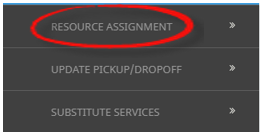
From the Home menu, select
 Home > Operations > Service Operations > Resource Assignment.
- Click the Home Menu to expand it:

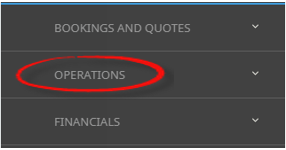
- Click the Operations menu option to expand it:

-
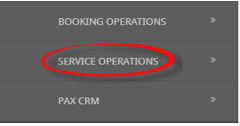
Click Service Operations menu option to expand it:

- Click Resource Assignment to open the Resource Assignment screen:

- Click the Home Menu to expand it:
-
ClickNew Assignment to insert a new assignment.

-
On theNew Assignment screen, select Service Date From/To, and select required filters to return results based on the filters entered.
NOTE: The Service Tab will open, required filters can be selected from within the Booking Tab, Analysis Tab (Booking and Agent), Service, or Analysis Tab (Supplier and Product). Click on the links to find out more about the fields.
The Service From/To dates will default to today’s date, these can be changed depending on the required dates.
In this example, the service dates from and to have been selected as 22 April 2025 and results are required for Transfer Services only.
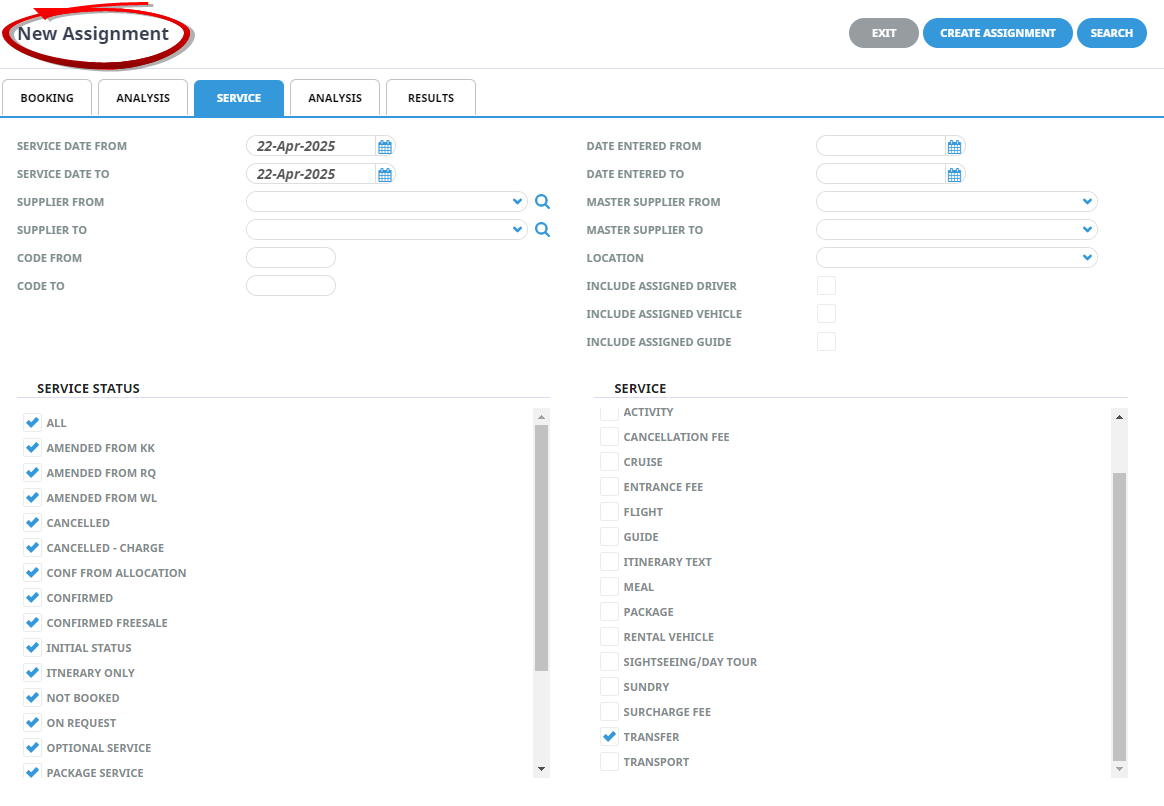
- Check the completed screens.
-
Click on theResults Tab or click Search. Select the bookings using the Select check boxes next to each booking or use Select All.
In this example there are two bookings that have been selected, and the pick up and drop off details are available if they have been inserted into the booking. A Vehicle and Driver/Guide can be assigned for this group. Selection of group numbers is possible under the Pick up Tab group dropdown, in this case there is one group created in this assignment.
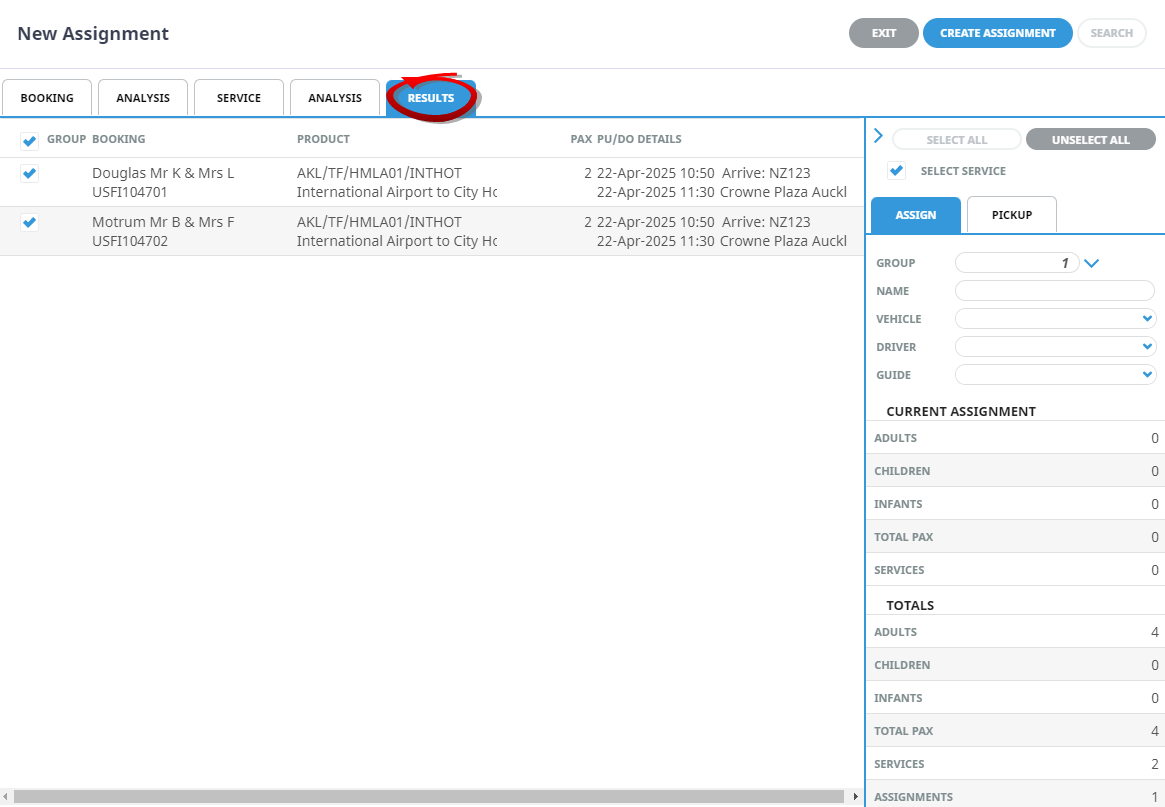
-
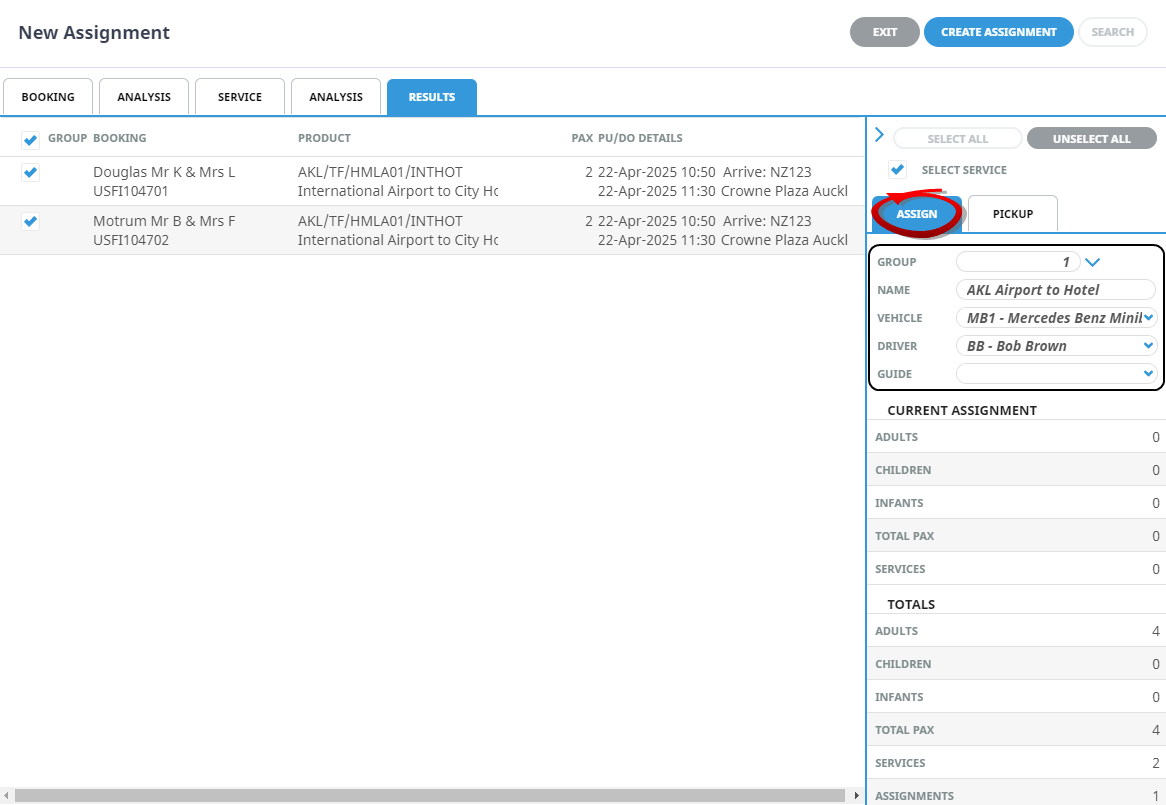
On theAssign Tab, enter an (Assignment) Name, and select a Vehicle and Driver.
NOTE: Bookings need to be selected before the assignment of Vehicle Drivers or Guides can occur.
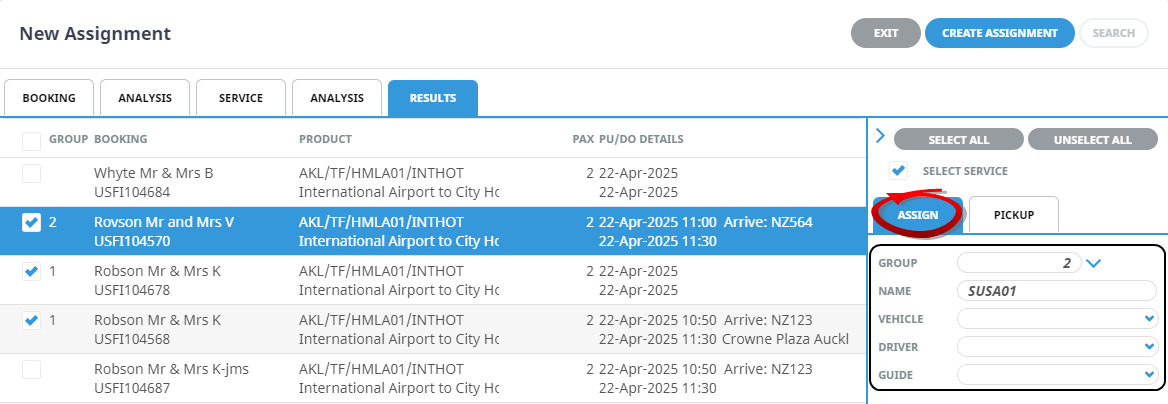
In this example three bookings have been selected and two (group) assignments have been defined. A different vehicle, driver and or guide can be selected per group. The group number can be assigned by highlighting the booking and selecting the group number.
-
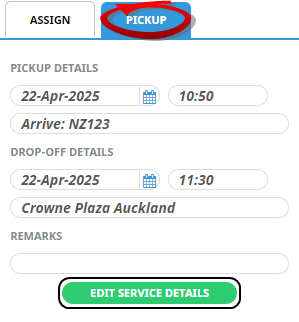
If the pick up details are known but not included in the booking, updates to the pick up/drop off fields can occur. Highlight the booking and select thePick Up Tab. If known enter a Pick up Time, Location and a Drop off Time and Location enter any remarks and select Edit Details.
In this example the pick up and drop off times and locations are known and have been updated.
-
ClickCreate Assignment to create an assignment.

-
On the Assignment Details screen, theAssignment Tab will open. The Name, Assignment Status, Start/ End Dates will default from the previous screen. These fields can be altered if necessary, but generally these would not require amendment. Select the Assignment Type required and enter any Assignment Notes that maybe applicable to your employees.
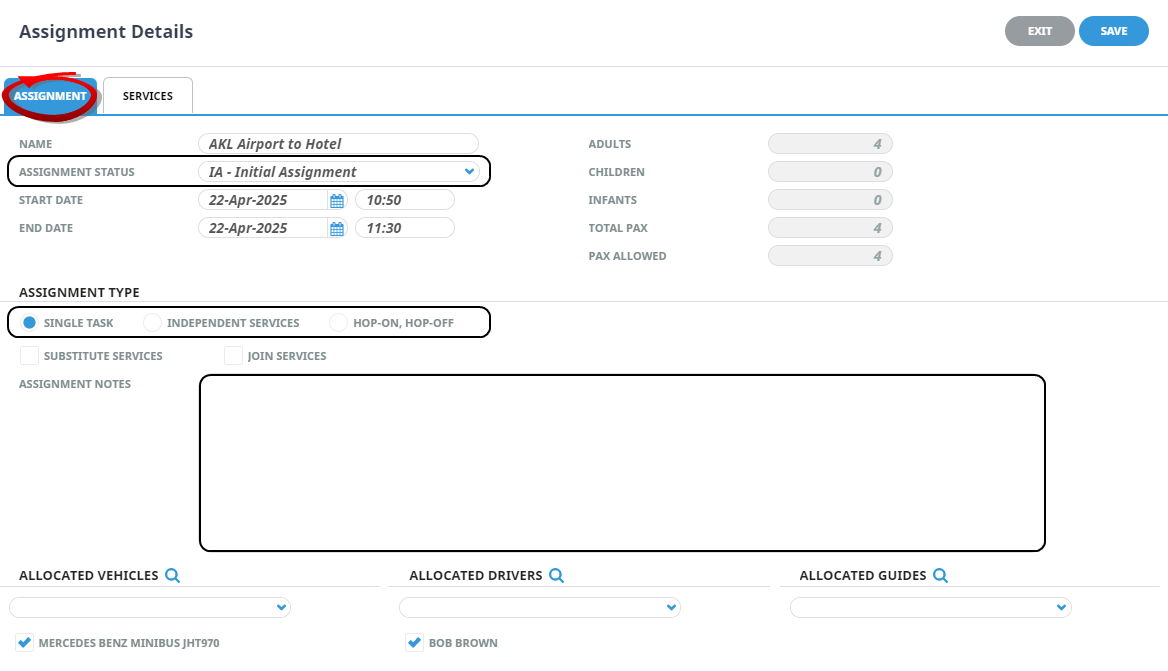
- Check the completed screens.
-
ClickSave to keep the changes.

Or Save All if creating more than one Resource Assignment.
-
ClickExit to discard any changes.


About New Assignment Fields
NOTE: The fields discussed below assume that the assignment uses one category. Organisations that use resources allowing services to be assigned more than once will see subtle screen differences. Namely an assignment dropdown category field will be enabled and visible for selection throughout the procedure.
Service Tab
NOTE: Assignment Category - This field is enabled if organisations are using multiple assignment categories to assign their services to more than one assignment.
Service Date From/To
These dates will default to todays date, specific date or date ranges are available for selection of services for the assignment.
Supplier From/To
Specific supplier or range of suppliers for selection of services for the assignment.
Code From/To
Specific (Product) Code from and to for selection of services for the assignment.
Date Entered From/To
Specific date range of when the booking was entered.
Master Supplier From/To
Specific master supplier or range of master suppliers for selection of services for the assignment.
Location
Specific location of a service for the assignment.
Service Status
By default, all service statuses are checked and services that have those status will be selected. Un-check statuses that are not required.
Service
By default, all service (types) are checked and bookings that have those services will be selected.
NOTE: Additional filters can be used to filter the returned results.
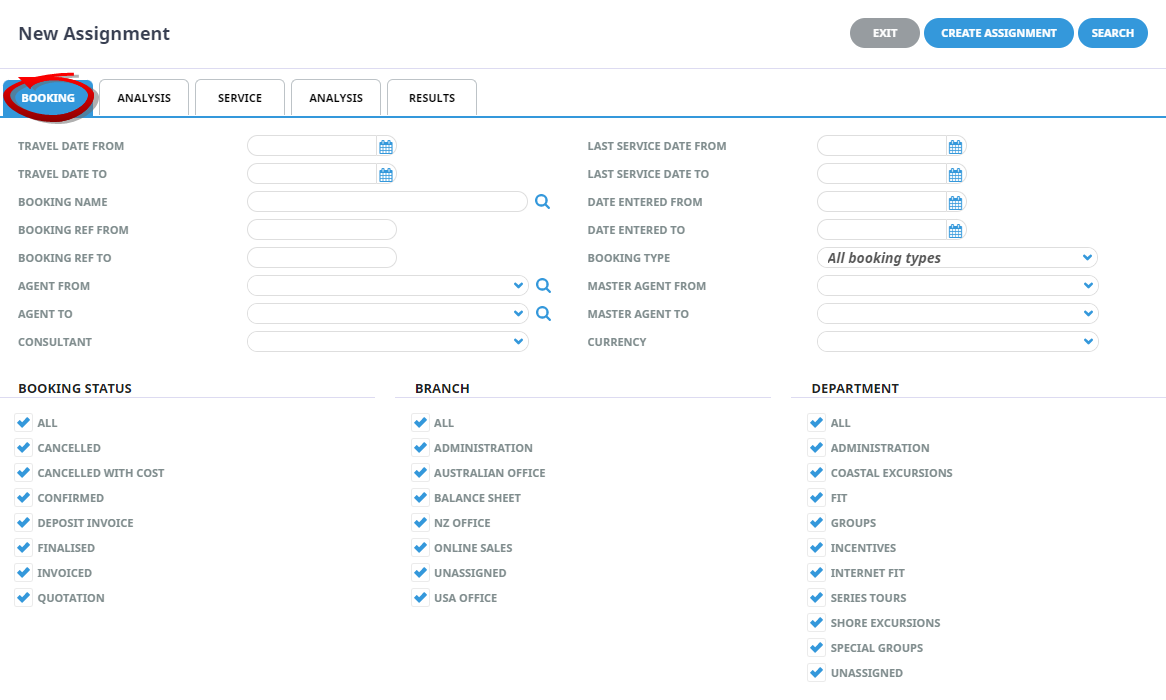
Booking Tab
Travel Date From/To
Used to select services with a specific, or range of, travel dates of the bookings to be selected.
Booking Name
Selection for services for a specific booking name.
Booking Ref From/To
Used to select bookings with a specific, or range of, reference numbers that services are to be output from.
Agent From/To
Used to select services with a specific, or range of, agent(s) codes in the booking header matching the selection.
Consultant
This field filters by the consultant code attached to the bookings for the services to be selected.
Last Service Date From/To
Used to select services with a specific last service date.
Date Entered From/To
The booking entered date(s) of the services to be selected.
Booking Types
Drop-down selection for the type of bookings that services are to be output from selection includes:
- All booking types - services from either FIT bookings or Group bookings will be selected.
- FIT's - those services that are attached to FIT bookings will be selected.
- Groups - those services that are attached to Group bookings will be selected.
Master Agent From/To
Used to select services with a specific, or range of, Master Agent code(s) in the booking header matching the selection.
NOTE: When a Master Agent (or range of Master Agents) is entered, Tourplan will find services in those bookings where the Agent(s) have the Master Agents attached to them. When searching on the Master Agent field, the Agent field should be left blank.
Currency
The booking currency of the services selected.
Booking Status
By default, all booking statuses are checked and services in bookings that have those status will be selected. Un-check statuses that are not required.
Branch
By default, all branches are checked and services in bookings that have those branches will be selected.
Department
By default all departments are checked, services in bookings that have those branches will be selected.
Analysis Tab (Booking and Agent Analysis)
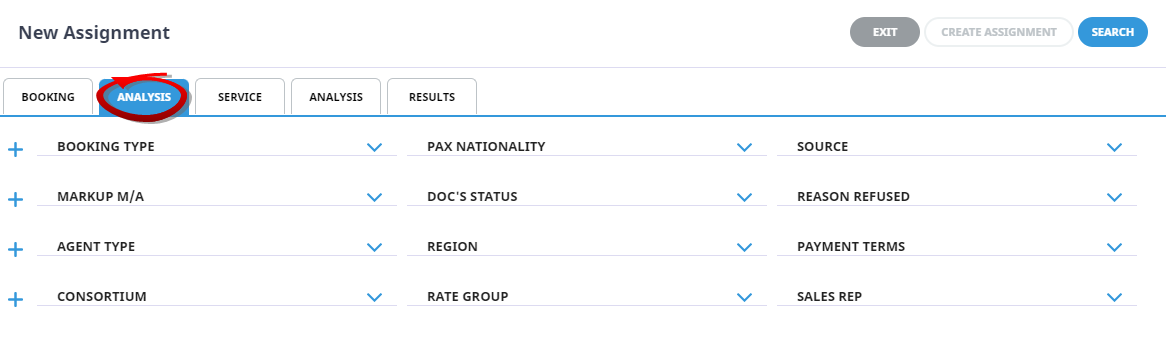
Booking Analysis
The top two rows of this tab are the 6 Booking Analysis codes. These are booking level selections.
Agent Analysis
The bottom two rows of this tab are the 6 Agent Analysis codes. These are Agent Analysis codes attached to the booking.
Analysis fields can be expanded or minimised by using the + or - function.
NOTE: The label descriptions and analysis selections used within this user manual will vary and will display the headings that have been setup in each users companies system.
Analysis Tab (Supplier and Product Analysis)
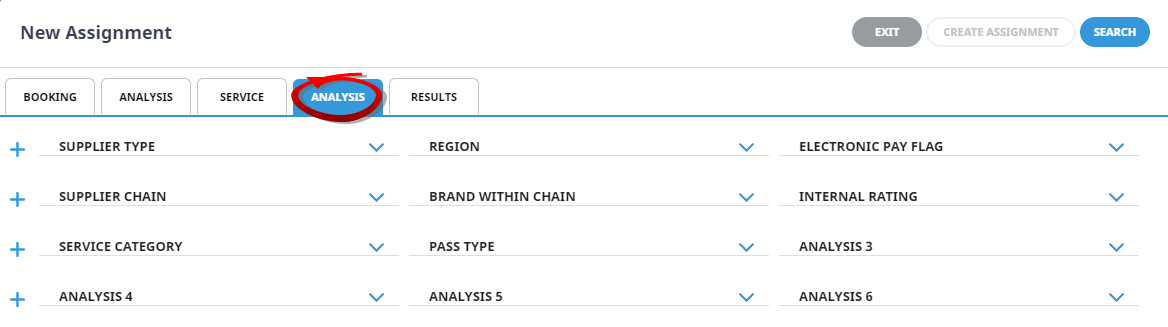
Supplier Analysis
The top two rows of this tab are the 6 Supplier Analysis codes. These are Supplier level selections attached to the service.
Product Analysis
The bottom two rows of this tab are the 6 Product Analysis codes. These are Product Analysis codes attached to the booking services.
Analysis fields can be expanded or minimised by using the + or - function.
NOTE: The label descriptions and analysis selections used within this User Manual will vary and will display headings that have been setup in each user company's system.
Results Tab
Selected check boxes
Bookings can be individually selected from the Results Tab (main screen) and grouped, the group value/number is assigned within the Assign tab (to the right of the screen). This is also where a vehicle can be assigned per group.
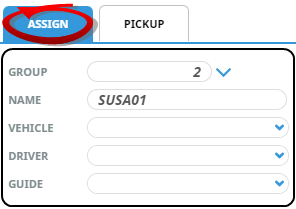
The screen capture below is showing group number 2, with a group name of SUSA01, a vehicle can be assigned to this group (group 2). A different vehicle could then be assigned to Group 1 by using the Group drop-down and selecting 1 assigning a different vehicle to this group.
Selected check boxes
Bookings can be individually selected.
Group
The Group number.
Booking
Name and reference number of booking.
Product
Product string and product description.
Pax
Number of pax booked per booking.
PU/DO Details
Pick up and drop off dates, times and locations will show if they are loaded against a booking. This information can be edited by selecting the booking, amending the pick up details within the pick up tab to the right of the screen and selecting edit details.
Select All/Unselect All
Select all bookings found, or un-select all bookings selected.
Totals
The system will keep a total of Assignments (selected), Services (used), and a Total pax count broken into number of Adults, Children and Infants within both the 'Assign' and 'Pick up' tabs to the bottom left of the screen.
Column Headings
Users can customise their column headings by clicking on the header row, or can amend the order of results by clicking on the field heading, see About Changing Default Column Headings.
To view the available column headings for a New Assignment, see Resource Assignments.
NOTE: The data can be sorted by any column by double clicking the column header. The order can then be reversed by double clicking the column header again.
About the Assign Tab Fields
Group
Individual group numbers can be selected and assigned to different bookings, this allows for multiple assignments to be generated at one time.
Name
A name for the assignment. Duplicate descriptions can be used if required, user company's will decide on the naming convention required for assignment names.
Vehicle
Vehicles would have been defined in the Code Setup, and selectable options for this assignment/s will be available when using the dropdown.
Driver
Drivers would have been predefined in Code Setup, and selectable options for this assignment/s will be available when using the dropdown.
Guide
Guides would have been predefined in Code Setup, and selectable options for this assignment/s will be available when using the dropdown.
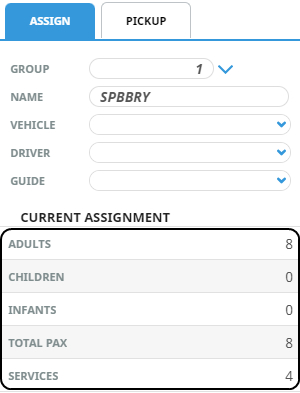
Current Assignment (Totals)
The system will provide totals per assignment 'group' number, providing the number of Services (selected), number of Adults, Children, Infants and Total Pax selected for this assignment.
In this example the screen capture is of the assignment tab on the right of the New Assignment screen. This assignment includes 4 Services, 8 Adults, 0 Children, 0 Infants, with a total pax count of 8 Adults.
Pick Up Tab
Provides information on the services that were selected in the results tab.
- Services can be viewed or un-selected from within the Services Tab.
- Service details such as pick up and drop off details or remarks fields can be edited.
- Edits to service details can be done for individual booking services or all bookings.
About Assignment Details
Assignment Tab
NOTE: Assignment Category - This field is enabled if organisations are using multiple assignment categories to assign their services to more than one assignment.
Name
The name given to the assignment, within the previous screen assign tab.
Assignment Status
Specific assignment status can be selected from a pre-defined list of statuses.
Start/End Dates
A specific date or a range of dates are available.
Adults, Children, Infants, Total Pax and Pax Allowed
This information is read only and displays from the totals in the previous screen. The information cannot be amended here.
Assignment Type
- Single Task - All services on the assignment are to be treated as a single task for the resource assigned to them. This means that any minimum/maximum number of passenger restrictions will be based on the total number of passengers in the service assignment.
- Independent Services - Each service in the assignment is to be operated independently. This type of assignment would be used where you are assigning resources on a daily/weekly basis and each service is a task in its own right.
- Hop on- Hop off - Multiple services are assigned that may or may not occur simultaneously so you have the situation where multiple services overlap.
- Substitute Services - This setting is most commonly used when the service costs are going to be joint and the costs of the service is to be shared across multiple bookings. If users decide to split the costs of the service over multiple bookings the service must be the same services and may require the original service to be substituted. This is discussed in more detail within Substituting Services procedures.
- Join Services - Selection can occur to join the service and share the cost, more detail is discussed within the Joining Services and Sharing Costs procedures.
Assignment Note
Free format note field can be used to insert specific assignment notes.
Allocated Vehicles, Drivers and Guides
Drop down selection of available resources can be selected here, and any pre-selected resources will display with a check box (to un-select if necessary). It may be beneficial for organisations to select the vehicles, drivers and guides at this point and it will depend on the workflow used and fleet available when assigning your resources. Some operational procedures will allow earlier assignment within the 'Assign' tab and other tour operators may select to allocate the resources at this point.
Services Tab
NOTE: The left of the screen will show a list of groups if more than one group was selected when assigning resources. Users will work with one group at a time by selecting each group separately and a list of services attached to each group is available when using the services tab.
 The arrow to the left can be used to view or edit pick up and drop off details per booking.